🦉 Interruptions, by invitation.
Do you keep checking your inbox — just in case?
OWL sends push alerts only when an email matches your
rules—so you can stop checking and stay present.
- ✓ Rules you control — senders, domains, keywords, threads
- ✓ Rules, not AI — no guessing, no training
- ✓ Works with Focus / Do Not Disturb — 60-sec setup
- ✓ Gmail + Outlook — up to 5 connected accounts


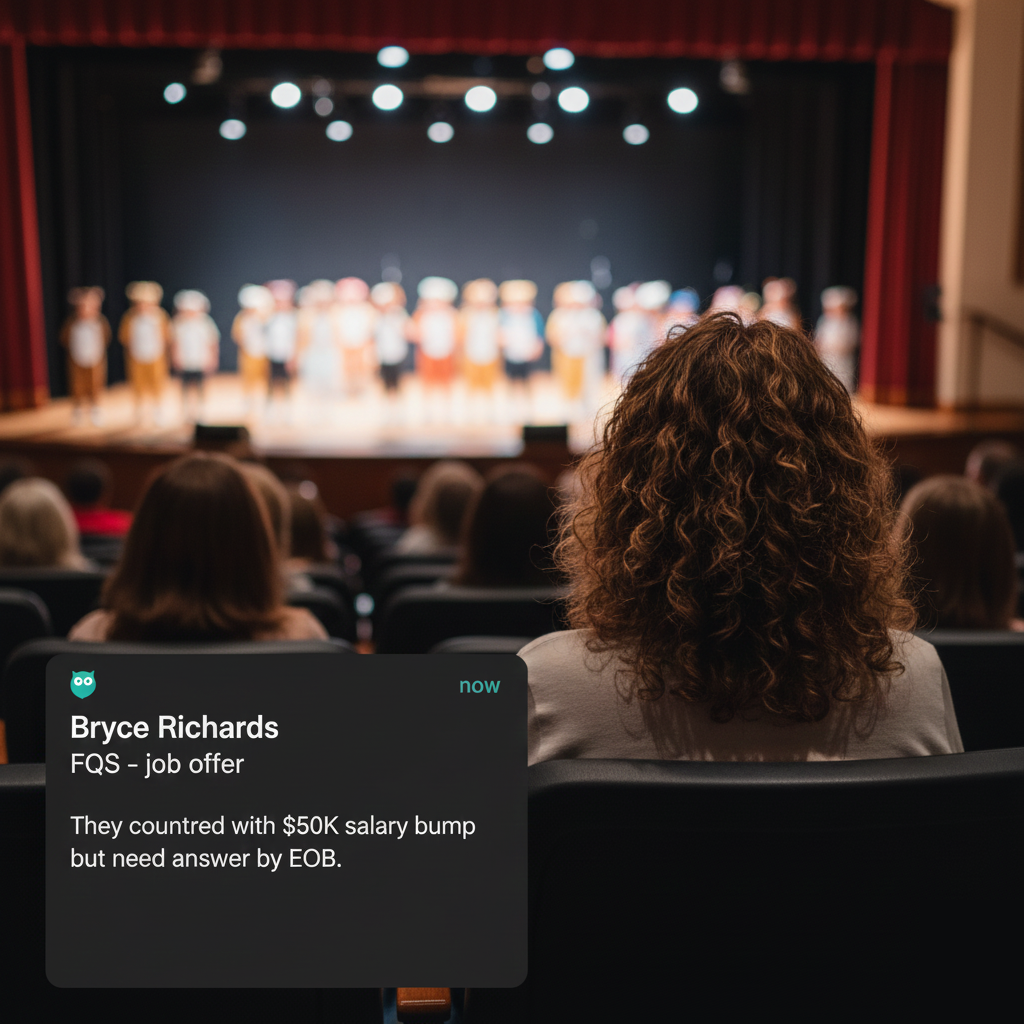
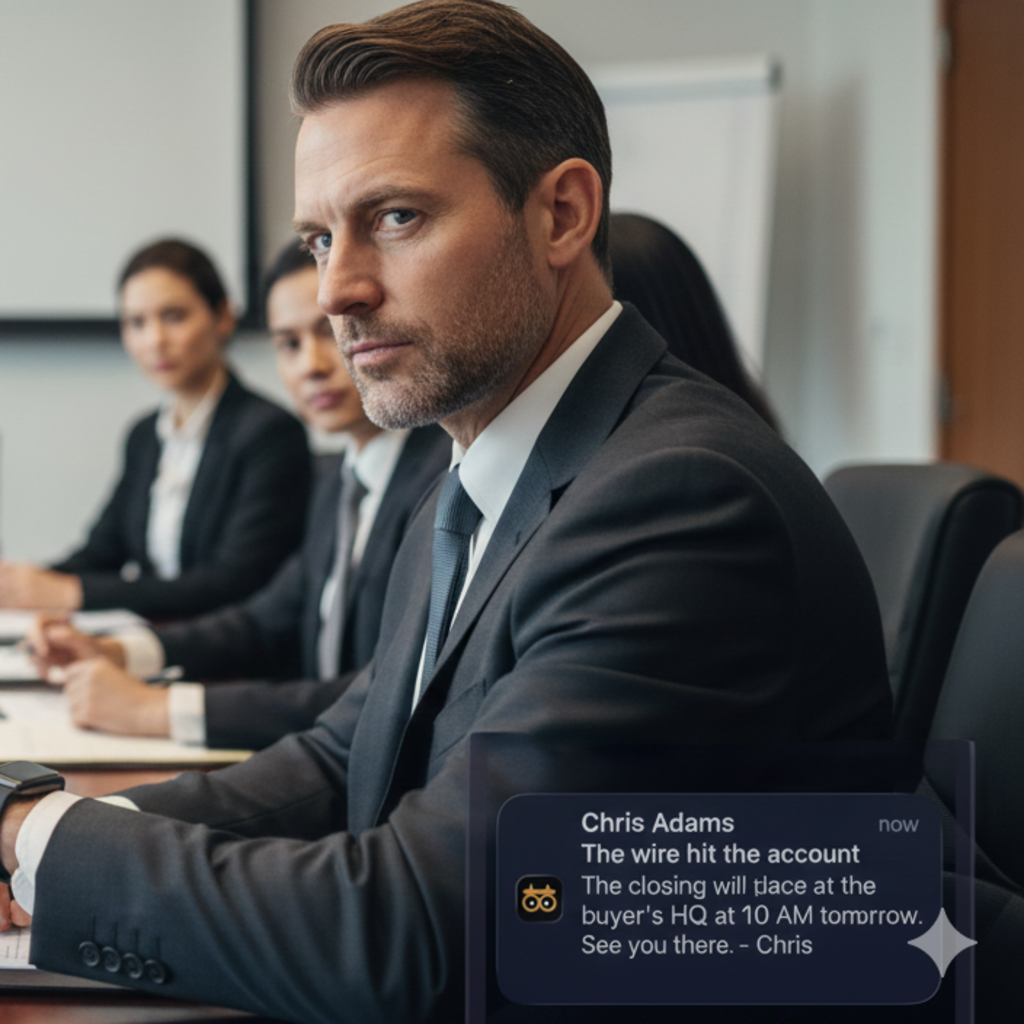
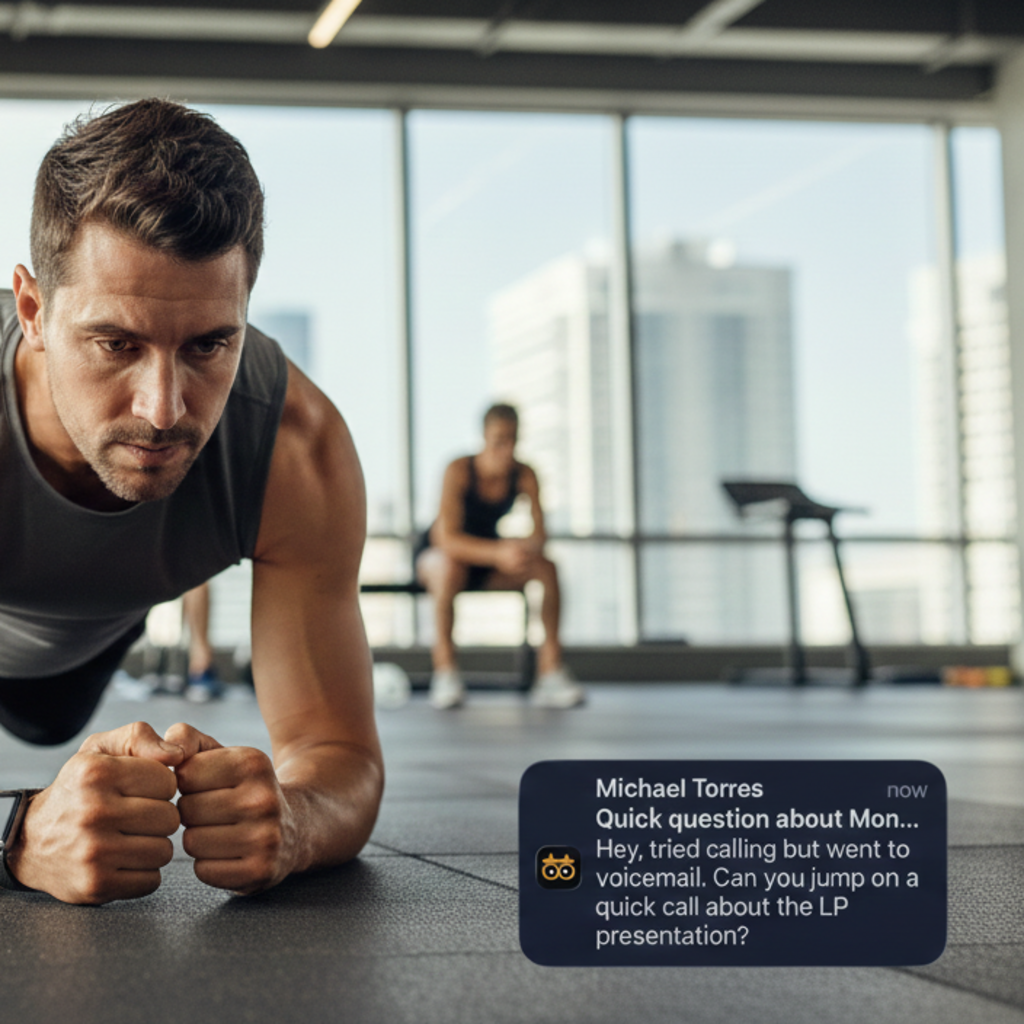

You're not addicted to email. You're managing risk.
It's not the volume—it's the one message you can't afford to miss. So you keep checking, splitting your attention—even when you want to be present.
OWL alerts you only when your rules match.
HOW OWL WORKS
How OWL works
OWL doesn't try to make email nicer. It changes the rules of interruption: you decide what gets access, and OWL enforces it.
Create your OWL rules
Add rules for senders, domains, keywords, or threads. OWL is selective. That's why it works.
OWL checks the guest list
When new mail arrives, OWL checks it against your rules in the background. Not another inbox. Just the exception layer.
Get a push alert
When a message matches, you get a push alert. One glance, one decision, then back to your life. (Or open Alert Details to see up to 10,000 characters for more color.)
Adjust the list as life changes
Add a rule for a busy week. Remove it when the project is over. It's a guest list, not a contract.
Set quiet hours per rule
OWL goes quiet during those windows—no interruptions until you say so.
Rules aren't permanent.
Most "priority" tools assume your world never changes.
OWL knows that it does.
The alert is the headline.
OWL gives you the context.
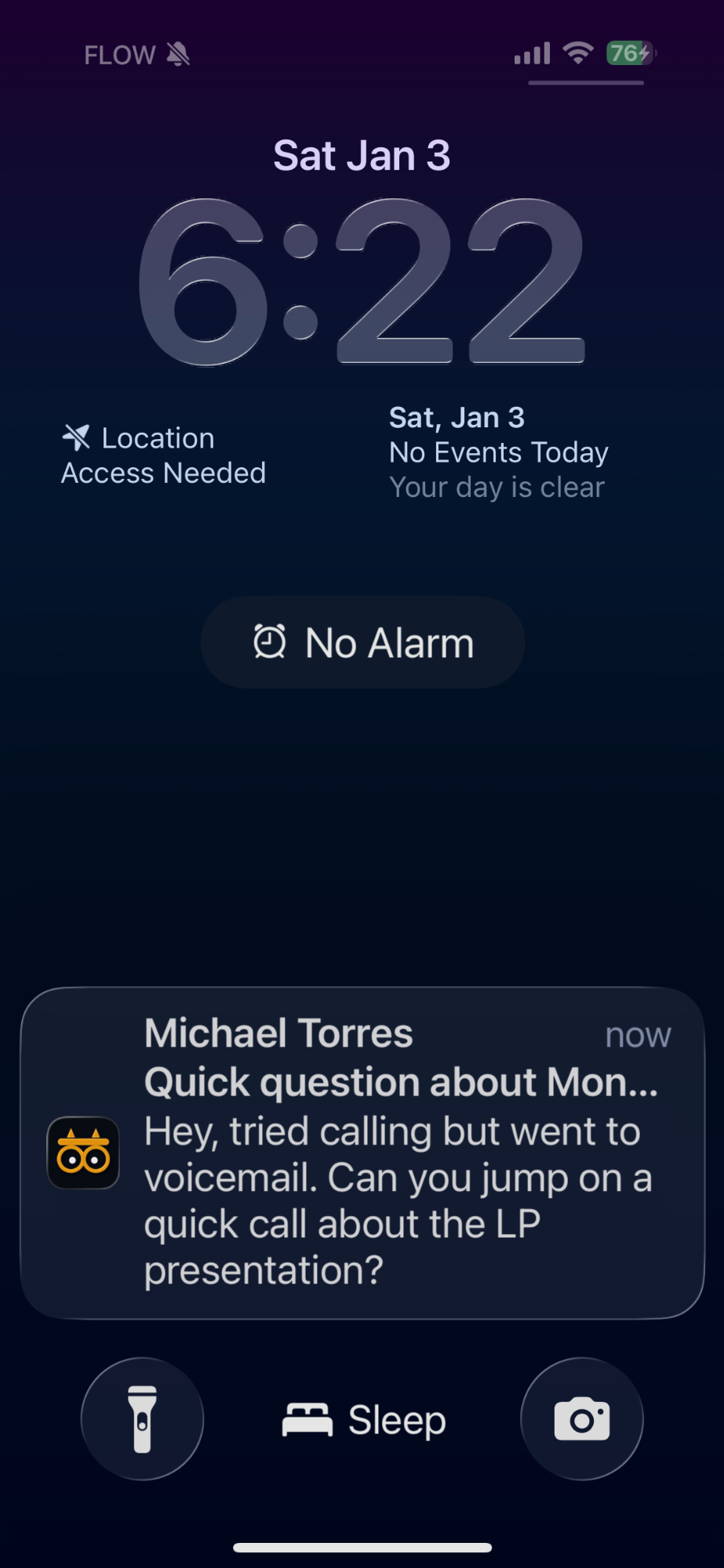
Small alert: rule + sender + subject slice. Open Alert Details—up to 10,000 characters of context—so you can decide without diving into your inbox.
A clean, minimal alert
Rule name + sender + subject at a glance
Context on demand
Up to 10,000 characters in Alert Details
Stay out of the inbox
Decide what to do next—without the scroll
Silent Mode
Control when each rule can interrupt you.
Set quiet hours per rule—days and times when alerts are logged but stay silent.
- ⏰ Set quiet hours for each rule
- 📌 Pick days and time ranges per rule
- 🔕 Master override to silence everything
- ⚡ Alerts still logged with a muted 🔕 icon
OWL RULES
You decide what earns an interruption.
OWL doesn't guess what matters. You write the guest list—and you can change it anytime.
👤 People (Senders)
"If this person emails me, it gets past the rope."
Examples: Investor, biggest customer, spouse, board member, attorney
🔑 Urgency Words (Keywords)
"Catch the rare words that only show up when something is real."
Examples: "wire instructions" AND urgent, proposal OR "term sheet", invoice NOT paid, SEV1 OR SEV2
Supports: Boolean search with AND, OR, NOT, "exact phrases", and parentheses
💬 Momentum (Threads)
"If this exact conversation moves, tell me."
Examples: Deal negotiation, recruiting thread, incident response
🌐 Companies (Domains)
"If it's from @them, it gets in."
Examples: @TenXVC.com, @client.com, @lawfirm.com
Pro tip: Add a keyword filter to narrow alerts (e.g., @lawfirm.com + "closing")
YOUR DATA, PROTECTED
Security isn't an add-on.
It's the foundation.
The safest gatekeeper is the one that doesn't need keys.

Need security documentation for your broker or IT team?
Download our Security Questionnaire (PDF) or email security@foundopportunity.com for anything custom.
PRICING
Try OWL free for 7 days.
No charge until the trial ends. Cancel anytime.
$50 billed yearly Save $22/year (31%)
Up to 5 connected accounts
Unlimited rules • Silent Mode • Alert Details
Start 7-Day Free TrialAfter 7 days: billed $50/year (or $6/month).
No passwords. Read-only access via OAuth.
Using Found Opportunity too? See note.
FAQ
Questions answered.
Short answer: You have to tell your phone which Focus modes OWL is allowed to interrupt. This takes about 60 seconds.
iPhone (iOS)
Important: iPhones treat each Focus mode separately. If you use Sleep, Work, and Do Not Disturb, you must add OWL to each one.
- Open Settings → Focus
- Tap a Focus mode (e.g., Sleep)
- Under Allowed Notifications, tap Apps
- Tap Add Apps and select OWL
- Repeat for each Focus mode you use
Also check: Settings → Notifications → OWL → turn on Allow Notifications and Time Sensitive Notifications (if shown).
Android
- Settings → Notifications → OWL → turn on Allow notifications
- Settings → Battery → Battery Optimization → find OWL → set to Unrestricted
- (Optional) Settings → Sound → Do Not Disturb → Allowed apps → add OWL
Note: Menu names vary by phone brand.
Yes, but not with the same email account.
OWL and Found Opportunity are separate products that cannot share the same connected email account. If you connect an email account to OWL that is already connected to Found Opportunity (or vice versa), it will disconnect from the other product and cause issues.
Example: If you have two Gmail accounts, you could connect one to Found Opportunity and the other to OWL. But you cannot connect the same Gmail account to both products.
Stop checking. We'll alert you when it matters.
Start a 7-day free trial. OWL notifies you only when emails match your custom rules.
Start 7-Day Free TrialNo charge today. Cancel anytime.